Installation and Login
This guide will help you quickly register, download, install, log in, update, and configure CodeBuddy IDE.
System Requirements
- Supported operating systems: Windows, macOS
- Modern browser or compatible IDE environment
Registration
Visit the CodeBuddy official website and click Login in the upper right corner.

If you haven't registered, click Sign Up to create an account.

Select your region to get started. You can register and log in directly using Google or GitHub authorization. After successful registration, you will be automatically logged in.

If you already have an account, click Login to sign in directly. Google/GitHub/Email login are supported.

Download
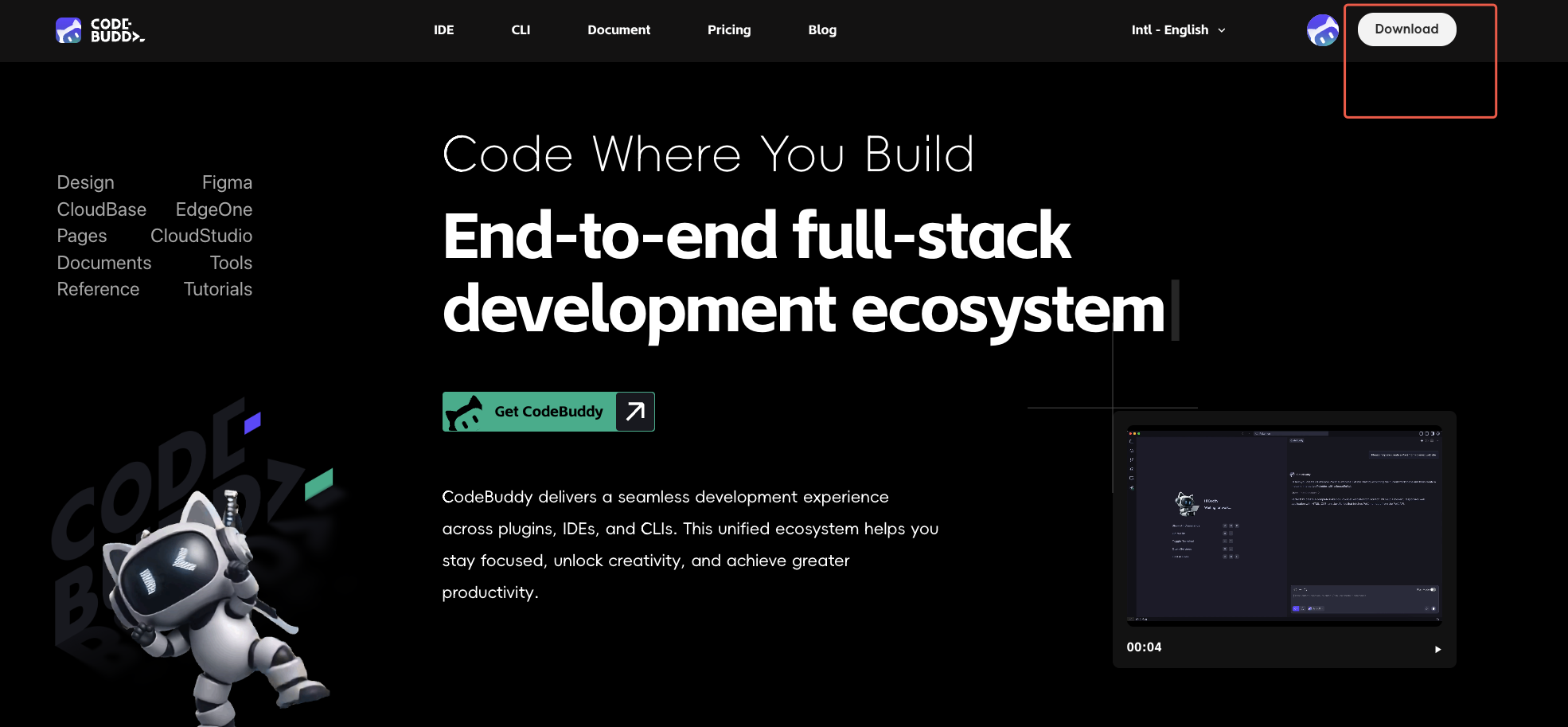
Visit the CodeBuddy official website and download the version that matches your computer's processor.
Installation and Login
macOS
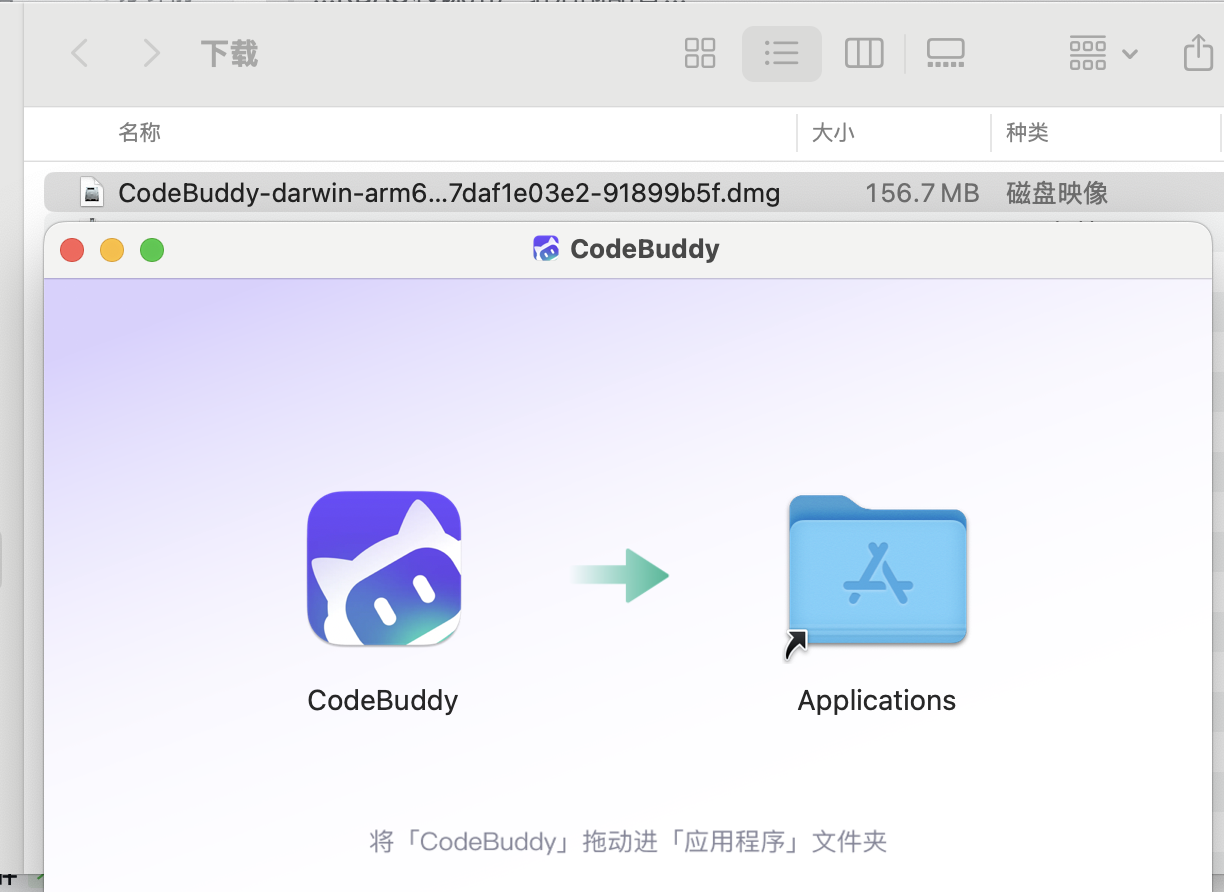
Drag the installer on the left to the Applications folder on the right to install.
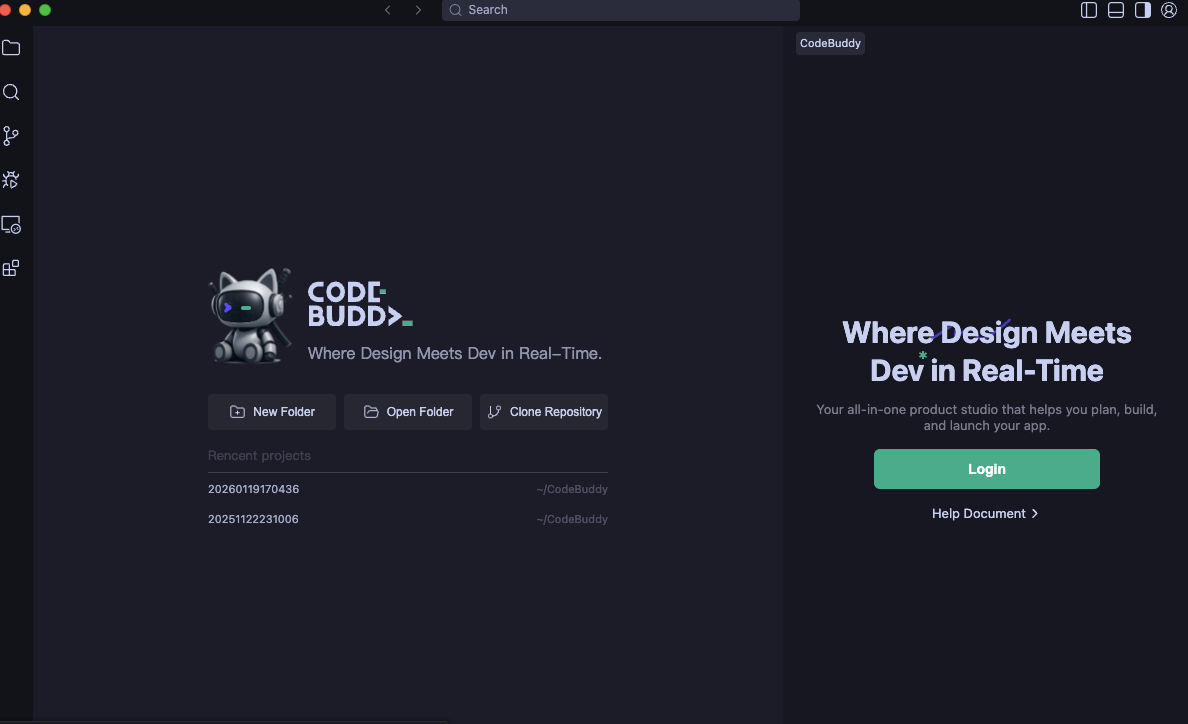
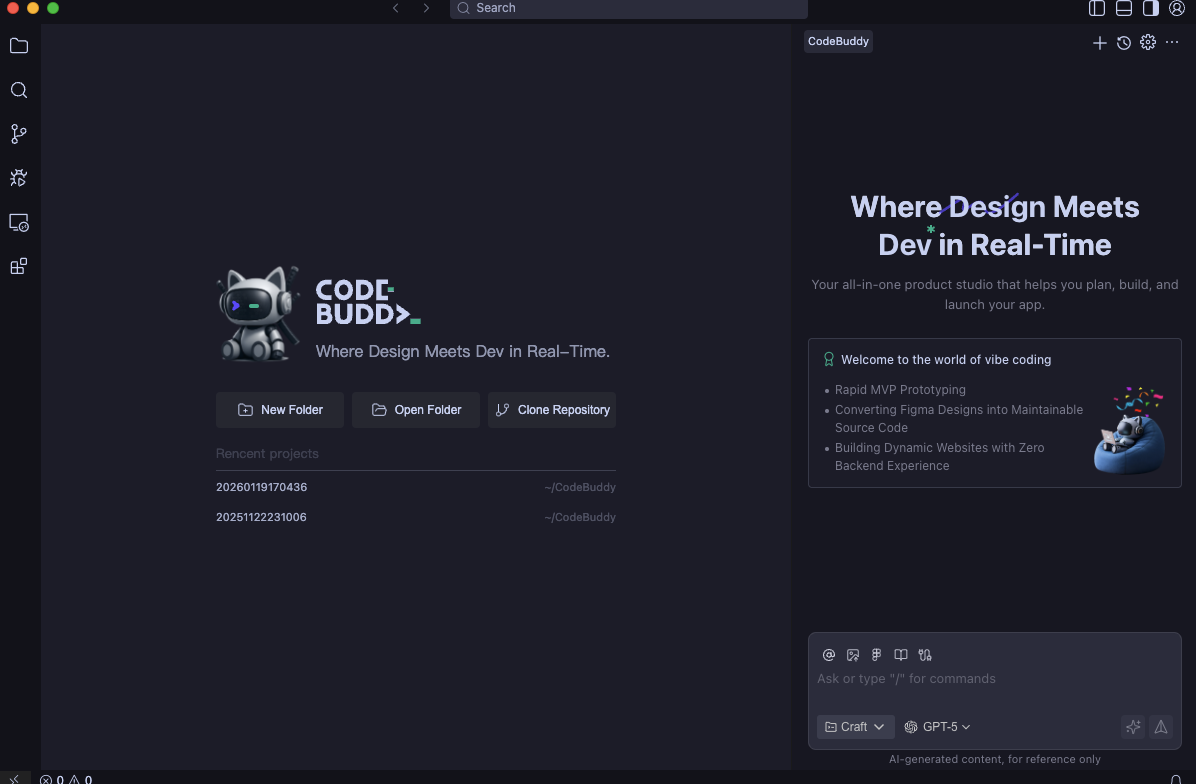
After installation, open CodeBuddy IDE and click Login to sign in with your registered account.
You will be redirected to the login page. Select your existing account to log in.

After successful login, return to CodeBuddy IDE to start using it.

Windows
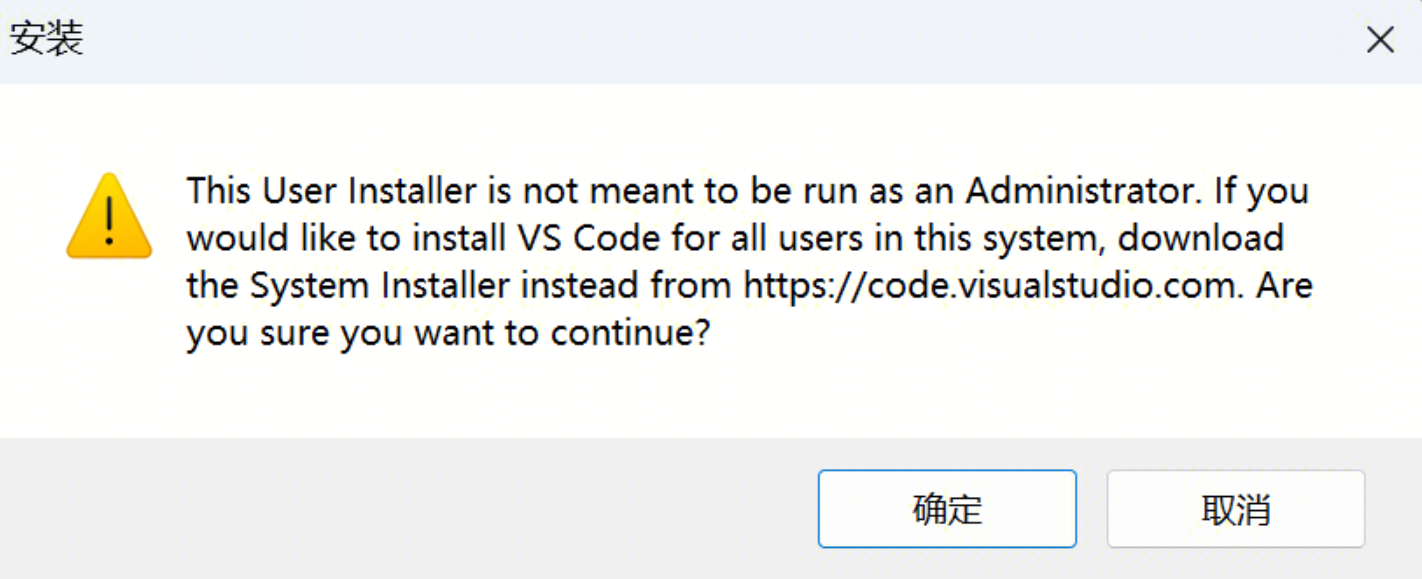
Double-click the downloaded installer to begin installation. If you see the following prompt, select OK, which means CodeBuddy IDE will be installed for the current user only.
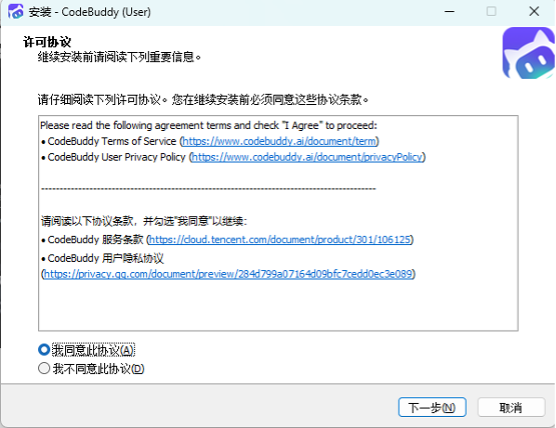
Select I accept this agreement.
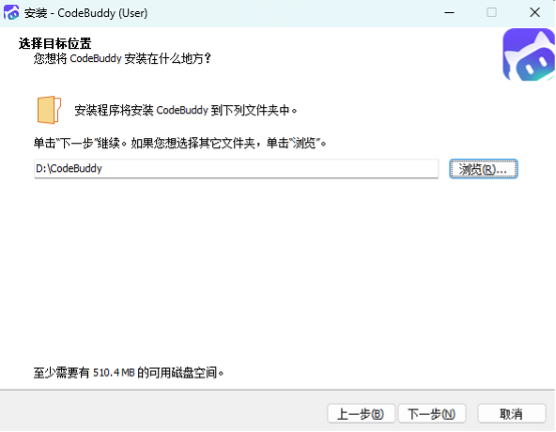
Choose the installation location, then keep clicking Next.
Installation complete as shown below.
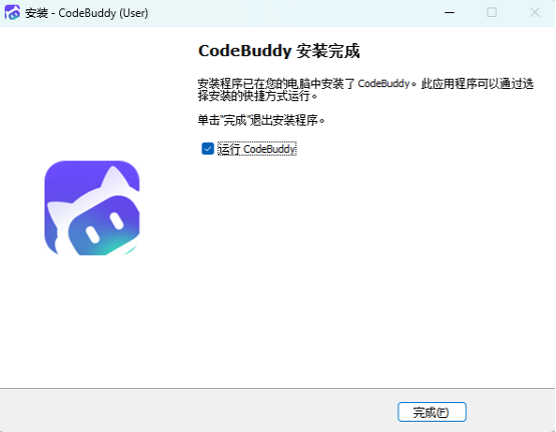
After installation, open CodeBuddy IDE and click Login to sign in with your registered account.
How to Update
Click Account in the upper right corner, then select Check for Updates from the menu.
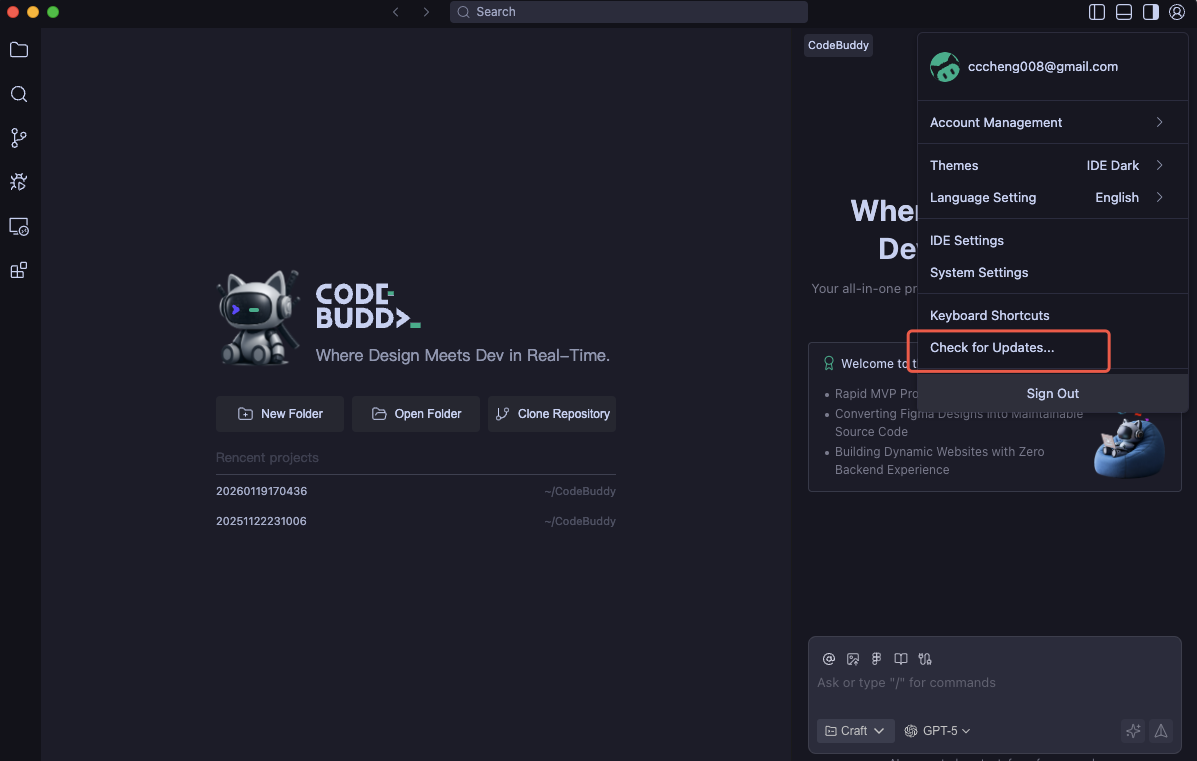
If a new version is available, you will receive a notification. Click the Install Now button to update.
Settings
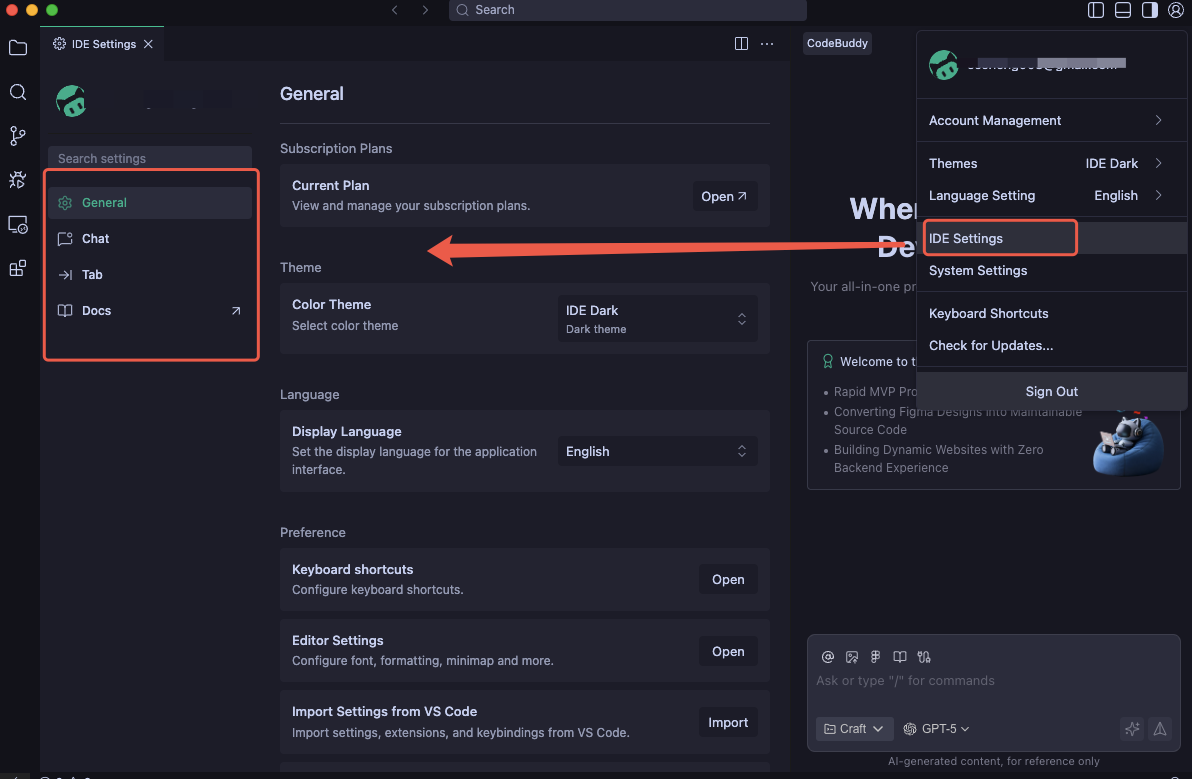
In CodeBuddy, you can configure settings through the settings page. The left navigation menu includes General, Chat, Tab, and Docs. You can customize settings according to your needs.